
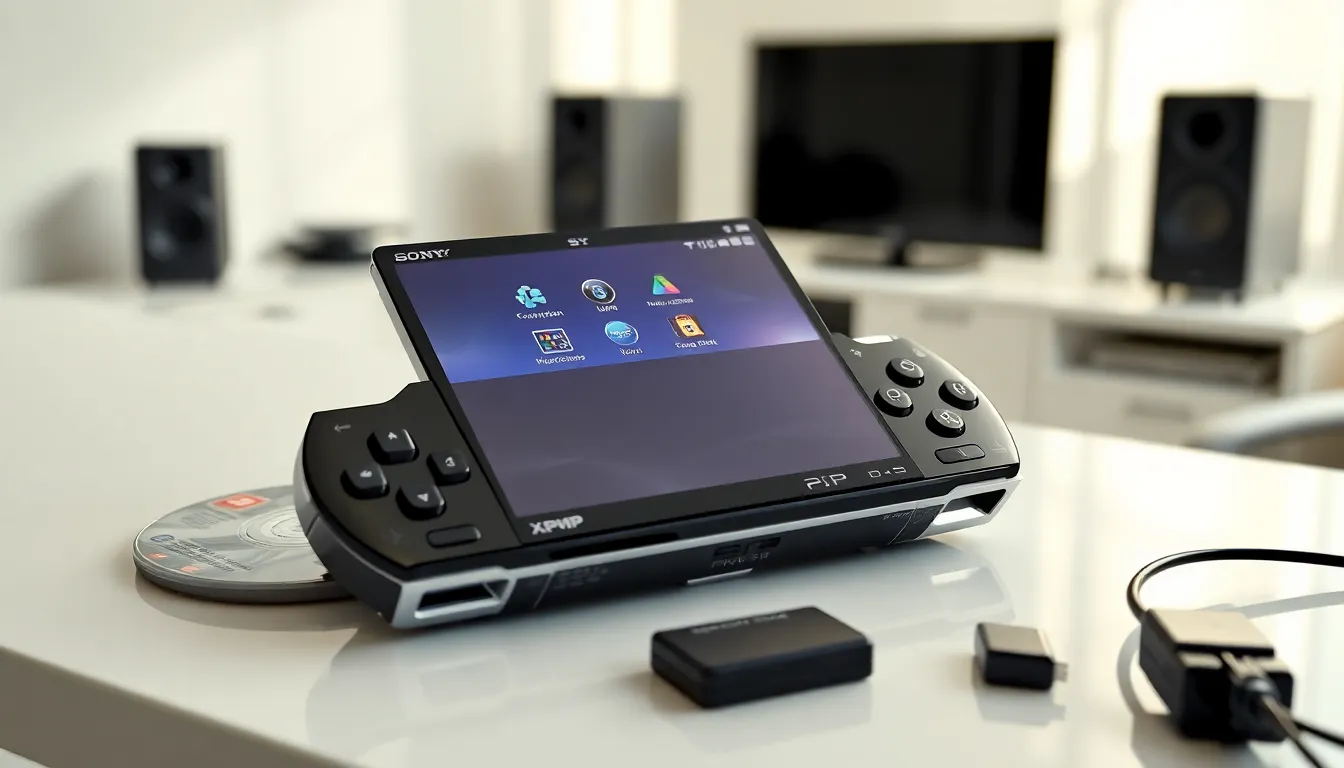
Learning how to PlayStation Portable works doesn’t have to be confusing. Sony’s handheld gaming device remains popular among retro gaming fans and collectors. The PSP offers portable gaming, media playback, and internet connectivity in one compact system. This guide covers everything beginners need to know about using a PlayStation Portable effectively. From initial setup to game loading and maintenance, users will find clear instructions for getting the most from their device.
Table of Contents
ToggleKey Takeaways
- The PlayStation Portable features an intuitive XMB menu system that organizes settings, games, music, photos, and network options into easy-to-navigate categories.
- PSP games load from UMD discs or digital downloads stored on a Memory Stick PRO Duo (up to 32GB supported).
- Connect your PlayStation Portable to Wi-Fi through Infrastructure Mode to access the PlayStation Store, online multiplayer, and Remote Play with PS3.
- Extend battery life by lowering screen brightness and using sleep mode when not actively gaming.
- Protect your PSP with a screen protector and carrying case, and clean the analog stick regularly to prevent drift.
- Update your PlayStation Portable to firmware version 6.61 for the best game compatibility and system features.
Getting Started With Your PSP
The PlayStation Portable requires proper setup before gaming sessions begin. New owners should familiarize themselves with the basic controls and interface. The PSP features a directional pad, analog stick, face buttons, and shoulder triggers. These controls handle most gaming and menu functions.
Charging and Powering On
The PSP uses a proprietary AC adapter for charging. Users should connect the adapter to the charging port on the bottom of the device. A full charge takes approximately two to three hours. The orange light indicates charging, while a green light means the battery is full.
To power on the PlayStation Portable, slide the power switch upward and hold it briefly. The system displays the Sony logo followed by the main menu. First-time users will need to set the date, time, and language preferences. The PSP remembers these settings for future use.
Battery life varies based on screen brightness and activity type. Gaming typically drains the battery faster than music playback. Users can extend battery life by lowering screen brightness in the settings menu. The PlayStation Portable also supports sleep mode, which pauses activity and conserves power.
Navigating the XMB Menu
The XMB (XrossMediaBar) serves as the PSP’s main interface. This horizontal menu system organizes content into categories. Users scroll left and right to switch between categories. Scrolling up and down reveals items within each category.
The main XMB categories include Settings, Photo, Music, Video, Game, and Network. Each category contains relevant subcategories and options. The Settings section lets users adjust system preferences, display options, and sound settings.
The PlayStation Portable’s XMB responds to the directional pad and analog stick. Pressing the X button selects items, while the Circle button goes back. The Triangle button often reveals additional options for highlighted items. Users quickly learn this navigation pattern through regular use.
Playing Games on Your PSP
The PlayStation Portable plays games from UMD discs and digital downloads. UMD (Universal Media Disc) was Sony’s proprietary format for PSP games. Users insert UMDs into the disc slot on the back of the device. The disc door opens by pressing the release button.
Once inserted, the UMD appears under the Game category in the XMB menu. Selecting the disc icon launches the game. Load times vary depending on the game’s size and complexity. Some titles require initial installation to the Memory Stick for faster loading.
Digital games require a Memory Stick PRO Duo for storage. Users can purchase games from the PlayStation Store when connected to Wi-Fi. Downloaded games appear in the Game category alongside UMD titles. The PlayStation Portable supports Memory Sticks up to 32GB, allowing storage for multiple games.
Saved game data also requires Memory Stick space. Most PSP games create save files automatically during gameplay. Users can manage saves through the Game category’s Saved Data Utility. This utility shows save file sizes and allows deletion of unwanted saves.
The PlayStation Portable also supports PlayStation One classics. These downloadable titles bring PS1 games to the handheld format. Controls map to the PSP’s buttons, though some games work better than others. PS1 classics offer great value for retro gaming fans.
For multiplayer gaming, the PSP supports Ad Hoc mode. This feature connects multiple PlayStation Portable systems wirelessly. Players within close range can join cooperative or competitive matches. Many PSP games include Ad Hoc multiplayer options.
Connecting to Wi-Fi and Online Features
The PlayStation Portable includes built-in Wi-Fi capabilities. Users can connect to wireless networks for online gaming and content downloads. Setting up Wi-Fi requires accessing the Network Settings under the Settings category.
The PSP supports Infrastructure Mode for internet connections. Users select their network from the available list and enter the password. The system saves network profiles for automatic connection later. The PlayStation Portable can store multiple network profiles for different locations.
Once connected, users access the PlayStation Store through the Network category. The store offers games, demos, themes, and video content. Account creation requires a valid email address and password. Users can also link existing PlayStation Network accounts.
The PSP’s web browser provides basic internet access. It handles most websites, though modern pages may display incorrectly. The browser works best for simple text-based sites. Users control the browser with the analog stick and face buttons.
Online multiplayer uses Infrastructure Mode for internet-based matches. Players connect to game servers for matches with others worldwide. Note that Sony discontinued official PSP online services in 2014. But, fan-run servers keep some games playable online.
The PlayStation Portable also supports Remote Play with PlayStation 3. This feature streams PS3 content to the handheld over Wi-Fi. Users can access media files and certain games remotely. Remote Play requires both devices on the same network or configured for internet access.
Essential Tips for PSP Maintenance
Proper care extends the PlayStation Portable’s lifespan significantly. The screen scratches easily without protection. Users should apply a screen protector or use a carrying case. Cleaning the screen requires a soft microfiber cloth, avoid paper products.
The UMD drive contains moving parts that wear over time. Users should handle discs carefully to prevent scratches. Dirty or damaged UMDs can cause reading errors. Storing discs in cases prevents dust accumulation and physical damage.
Battery health matters for portable gaming. The PSP’s original batteries degrade after years of use. Replacement batteries remain available from third-party manufacturers. Users should avoid leaving the PlayStation Portable plugged in constantly, as this can reduce battery lifespan.
The analog stick collects dust and debris through regular use. This buildup causes drift and unresponsive input. Compressed air removes loose particles from around the stick. Deep cleaning requires disassembly, which experienced users can attempt.
Firmware updates improved PSP functionality over its lifespan. The final official firmware version is 6.61. Users should update their PlayStation Portable for the best compatibility and features. Updates install from the Settings menu or via USB connection to a computer.
Memory Stick care prevents data loss. Users should safely remove Memory Sticks through the system menu before physical removal. Formatting erases all data, so users should back up important saves first. The PlayStation Portable works best with genuine Sony Memory Sticks, though quality third-party options exist.