
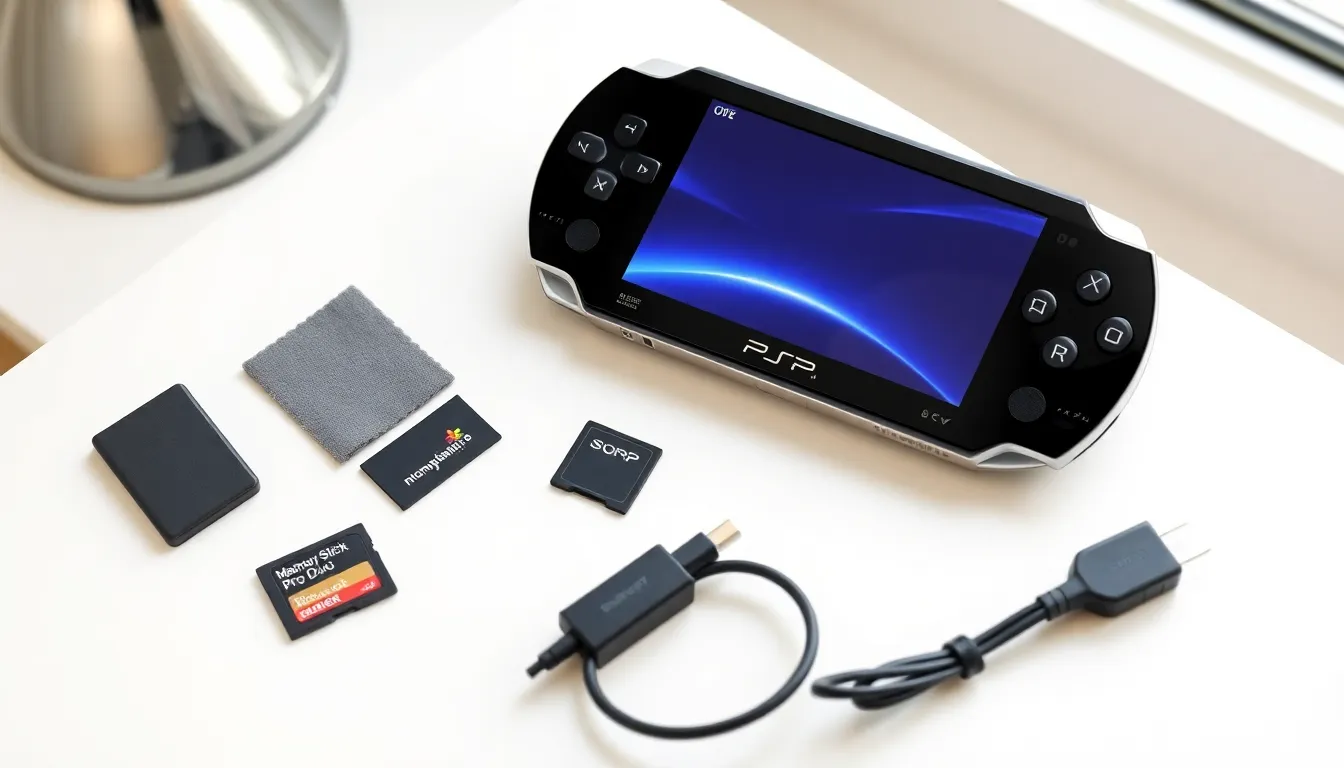
PlayStation Portable techniques can transform how players experience Sony’s iconic handheld console. The PSP remains a beloved device for gaming, media playback, and portable entertainment. Whether someone recently discovered this classic handheld or has owned one for years, learning the right techniques makes a real difference. This guide covers hardware basics, battery optimization, interface tips, gaming strategies, and media features. Every PSP owner can benefit from these practical methods to get more from their device.
Table of Contents
ToggleKey Takeaways
- PlayStation Portable techniques like lowering screen brightness and disabling Wi-Fi can significantly extend battery life during play sessions.
- Understanding your PSP model’s unique features—such as the PSP-3000’s improved LCD or the PSP Go’s digital-only format—helps you maximize its capabilities.
- Proper file organization using the correct folder structure (PSP/MUSIC/, PSP/VIDEO/, PSP/PHOTO/) ensures the XMB interface recognizes your media files.
- Using faster Memory Stick Pro Duo cards (Class 4 or higher) noticeably reduces game load times and improves overall performance.
- Regular hardware maintenance, including storing the PSP in a case and cleaning the UMD lens, protects your device and prevents read errors.
- Converting videos to the PSP’s native 480×272 resolution ensures smooth playback without wasting storage space.
Understanding Your PSP Hardware
The PlayStation Portable packs impressive technology into a compact form factor. Sony released several PSP models over the years, including the PSP-1000, PSP-2000 (Slim), PSP-3000, and PSP Go. Each version brought improvements in weight, screen quality, and features.
The original PSP-1000 weighs more than later models but remains durable. The PSP-2000 introduced a slimmer design and video-out capability. The PSP-3000 added an improved LCD screen with better color reproduction and reduced ghosting. The PSP Go ditched the UMD drive entirely, relying solely on digital downloads.
Key Hardware Components
Players should understand several core components:
- Screen: The PSP uses a 4.3-inch LCD display at 480×272 resolution. Keeping the screen clean improves visibility and reduces eye strain.
- Memory Stick: All PSP models except the PSP Go use Memory Stick Pro Duo cards. Larger capacity cards allow more game saves, music, and videos.
- UMD Drive: The Universal Media Disc drive reads game and movie discs. Keeping the drive lens clean prevents read errors.
- Analog Nub: This small joystick controls movement in most games. Some users replace worn nubs with aftermarket parts.
Regular maintenance extends hardware life. Users should store the PSP in a case, avoid extreme temperatures, and clean the device with a microfiber cloth. These PlayStation Portable techniques protect the investment and keep the system running smoothly.
Optimizing Battery Life and Performance
Battery management ranks among the most important PlayStation Portable techniques. The PSP’s battery life varies by model and usage patterns. Original PSP-1000 batteries last around 4-6 hours, while newer models offer slightly better endurance.
Power-Saving Settings
Several settings help conserve battery:
- Screen Brightness: Lowering brightness from level 4 to level 2 significantly extends playtime. Most games look fine at reduced brightness.
- WLAN Switch: Turn off the wireless switch on the side of the PSP when not using online features. Wi-Fi drains battery quickly.
- Power Save Mode: Enable this option in system settings. It reduces CPU speed during less demanding tasks.
- Auto Sleep: Set the PSP to sleep after periods of inactivity.
Battery Health Tips
Proper charging habits matter for long-term battery health. Users should avoid leaving the PSP plugged in constantly after reaching full charge. Completely draining the battery occasionally helps calibrate the charge indicator.
Replacement batteries remain available for older PSPs. Third-party options vary in quality, so buyers should check reviews before purchasing. Some aftermarket batteries offer higher capacity than originals.
Performance also depends on memory card speed. Faster Memory Stick Pro Duo cards reduce load times in games. Class 4 or higher cards provide noticeable improvements over older, slower cards.
Navigating the XMB Interface Efficiently
The XrossMediaBar (XMB) interface organizes all PSP functions into horizontal categories and vertical lists. Learning to move through the XMB quickly saves time and improves the overall experience.
The main categories include Settings, Photo, Music, Video, Game, and Network. Each category contains relevant options and content. Players can scroll left and right between categories, then up and down within each one.
Useful Shortcuts
Several PlayStation Portable techniques speed up XMB use:
- Triangle Button: Press Triangle on any item to see additional options like delete, copy, or information.
- Display Button: This shows screen brightness and volume controls without entering settings.
- Home Button During Games: Pressing Home brings up a quick menu for adjusting settings mid-game.
Organizing Content
The PSP automatically sorts content by type. Users can create folders on their Memory Stick to organize files better. Proper folder structure matters for the PSP to recognize media files.
For music: PSP/MUSIC/
For videos: PSP/VIDEO/
For photos: PSP/PHOTO/
Naming files clearly helps locate them quickly. The XMB displays file names, so descriptive titles make browsing easier.
Gaming Techniques for Better Play
Gaming represents the PSP’s primary purpose, and specific techniques can improve performance in many titles. These PlayStation Portable techniques help players get more enjoyment from their game library.
Save Management
Smart save habits prevent lost progress:
- Use multiple save slots when games allow it
- Copy important saves to a computer as backup
- Check available memory before starting long play sessions
Control Customization
Many PSP games allow button remapping. Players with specific preferences should check each game’s options menu. Some titles let users swap the analog nub and D-pad functions, which helps in certain game genres.
The analog nub requires a light touch. Pressing too hard wears it out faster and reduces precision. Players should develop a gentle grip for extended sessions.
Genre-Specific Tips
Action Games: Use the D-pad for precise movement when the analog nub feels too sensitive. Many action titles respond better to digital input.
Racing Games: Adjust camera settings to find the best view. Some players prefer bumper cam while others like chase view.
RPGs: Fast-forward through battle animations when available. This cuts grinding time significantly.
Fighting Games: Practice combos in training modes before online play. The PSP’s button layout differs from standard controllers, so muscle memory needs adjustment.
Screen protectors help during intense gaming sessions. Sweaty hands and repeated touches can damage the screen over time.
Media and Connectivity Features
Beyond gaming, the PSP serves as a capable media player. These PlayStation Portable techniques unlock the device’s full entertainment potential.
Video Playback
The PSP supports MP4 and AVC video formats. Users must convert videos to compatible resolutions for smooth playback. The optimal resolution matches the screen: 480×272 pixels. Higher resolution files waste storage space without visual benefit.
Free conversion software like HandBrake includes PSP presets. These presets automatically configure the correct settings for PSP-compatible output.
Music Features
The PSP plays MP3, AAC, and ATRAC files. Users can create playlists directly on the device or organize music into folders. The system displays album art when embedded in music files.
Connectivity Options
Wi-Fi connectivity enables several features:
- Internet Browser: The built-in browser handles basic web browsing. It works best with mobile-optimized sites.
- PlayStation Store: Users can purchase and download games directly to the PSP (service availability varies by region).
- Remote Play: Certain PSP models connect to PlayStation 3 consoles for remote access to media and select games.
- Ad-Hoc Multiplayer: Local wireless play works between multiple PSPs without internet access.
File Transfer
Connecting the PSP to a computer via USB allows direct file transfer. The PSP appears as a removable drive, making drag-and-drop simple. This method works faster than wireless transfer for large files.