
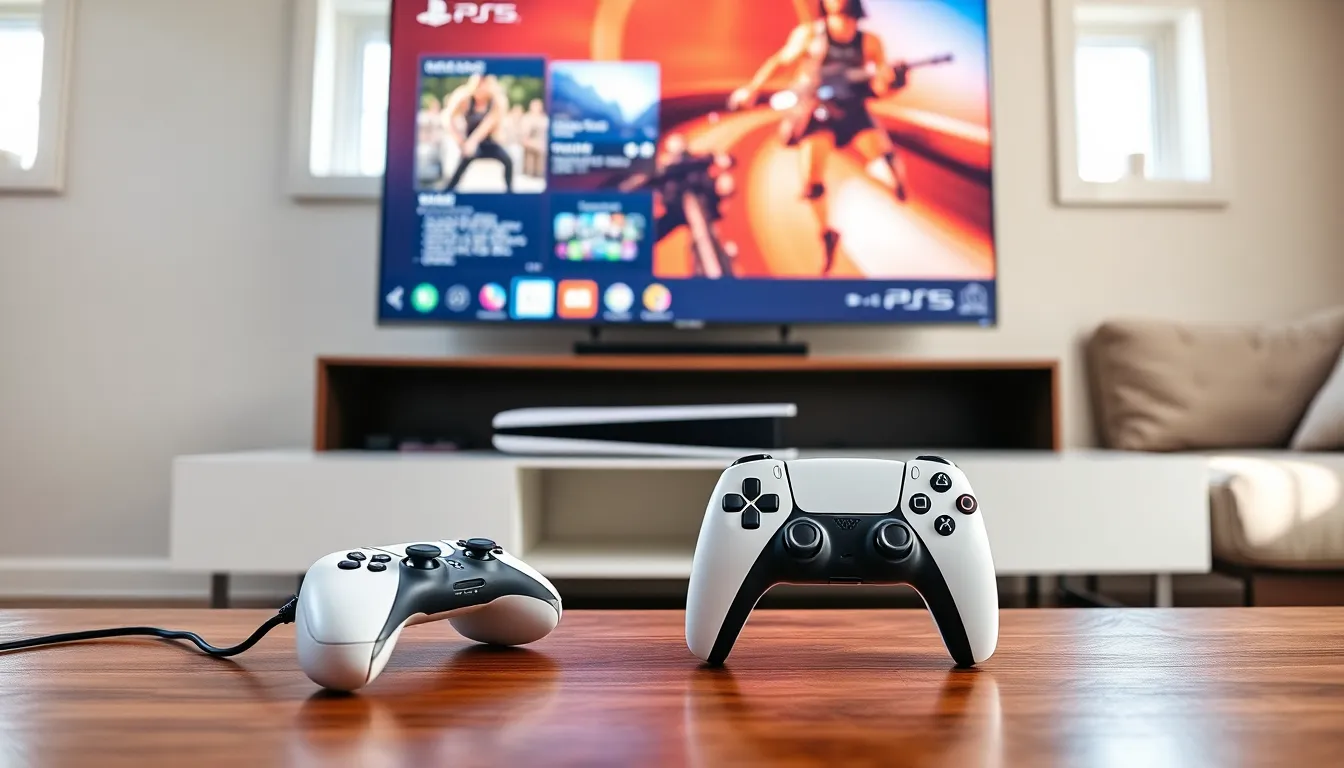
Learning how to PlayStation doesn’t have to feel overwhelming. Whether someone just unboxed a PS5 or picked up a PS4, this guide breaks down every step from setup to gameplay. New users often feel lost staring at cables, menus, and account screens. This article covers console setup, user interface basics, PlayStation Network accounts, the PlayStation Store, and practical tips for beginners. By the end, any new owner will feel confident using their console.
Table of Contents
ToggleKey Takeaways
- Learning how to PlayStation starts with proper setup: connect HDMI and power cables, pair your controller via USB, and follow the on-screen prompts to configure Wi-Fi and system updates.
- Create a free PlayStation Network (PSN) account to unlock online features, multiplayer gaming, and access to the PlayStation Store.
- Enable two-factor authentication on your PSN account to protect linked payment methods and personal information.
- Use Rest Mode to download games faster, charge controllers, and keep your system updated automatically.
- Expand your console’s storage early with an NVMe SSD (PS5) or external hard drive (PS4), as modern games quickly fill the default storage.
- Try free-to-play games like Fortnite and Rocket League to explore online gaming without needing a PlayStation Plus subscription.
Setting Up Your PlayStation Console
The first step in learning how to PlayStation starts with physical setup. Users should place the console on a flat, stable surface with good ventilation. The PS5 can stand vertically or horizontally, both positions work fine with the included stand.
Connecting Cables
Plug the HDMI cable into the console and the TV. Connect the power cable to the console and a wall outlet. For wired internet, attach an Ethernet cable to the back port. Wireless connections can be configured later during software setup.
Initial Power On
Press the power button on the console. The system will boot up and display a welcome screen. Follow the on-screen prompts to select language, connect to Wi-Fi, and accept the terms of service. The console may download a system update, this can take 10-30 minutes depending on internet speed.
Connecting the Controller
The DualSense (PS5) or DualShock 4 (PS4) controller needs pairing. Connect it to the console using the included USB cable. Press the PS button in the center. The controller will sync automatically. After initial pairing, users can disconnect the cable and play wirelessly.
Navigating the PlayStation User Interface
Understanding the PlayStation user interface makes everything easier. Sony designed the home screen to feel intuitive, though first-time users may need a few minutes to get comfortable.
The Home Screen
The PS5 home screen displays recently played games and apps in a horizontal row. Selecting a game shows additional options below: play, check news, view trophies, or access the game’s hub. The PS4 uses a similar layout but with a slightly different visual style.
The Control Center
Pressing the PS button opens the Control Center (PS5) or Quick Menu (PS4). This overlay provides fast access to friends, downloads, notifications, sound settings, and power options. Users can switch between games, check messages, or adjust audio without returning to the home screen.
Settings Menu
The gear icon in the top-right corner opens Settings. Here, users can adjust display output, audio preferences, network connections, storage management, and parental controls. Spending five minutes exploring Settings helps users customize their PlayStation experience.
Creating and Managing Your PlayStation Network Account
A PlayStation Network (PSN) account unlocks online features, multiplayer, and the PlayStation Store. Creating one takes about five minutes.
Account Creation Steps
- Go to Settings > Users and Accounts > Account
- Select “Sign Up for PlayStation Network”
- Enter an email address, create a password, and choose an online ID
- Provide date of birth and country information
- Verify the email address through the confirmation message
The online ID becomes the public username other players see. Choose something memorable, changing it later costs money after the first free change.
PlayStation Plus Subscription
PlayStation Plus is a paid subscription service. The Essential tier ($60/year) grants online multiplayer access and monthly free games. Extra and Premium tiers add game catalogs and classic titles. Users can play single-player games without PlayStation Plus, but online multiplayer requires it.
Account Security
Enable two-factor authentication in Settings > Users and Accounts > Security. This adds a verification code step during sign-in. Given how many payment methods link to PSN accounts, this extra protection matters.
Downloading Games and Using the PlayStation Store
The PlayStation Store offers thousands of games, from AAA titles to indie gems. Users can browse and purchase directly from the console.
Accessing the Store
Select the PlayStation Store icon from the home screen. The store organizes content into categories: new releases, sales, genres, and subscriptions. A search function lets users find specific titles quickly.
Purchasing and Downloading
Select a game, review the price, and click “Add to Cart” or “Buy Now.” Payment options include credit cards, PayPal, and PlayStation Store gift cards. After purchase, the download begins automatically. Game sizes vary widely, some downloads take 30 minutes, others take several hours.
Managing Downloads
The Downloads section in the Control Center shows progress. Users can pause, prioritize, or cancel downloads here. Games can also queue while the console is in Rest Mode, which uses less power and often provides faster download speeds.
Physical vs Digital Games
Physical discs still work on disc-equipped PlayStation models. Insert the disc, wait for installation, and play. Digital games live on the console’s storage permanently (or until deleted). Digital purchases tie to the PSN account, so users can re-download them anytime.
Essential Tips for New PlayStation Users
These practical tips help new users get more from their PlayStation console.
Use Rest Mode
Rest Mode keeps the console in a low-power state. Games download faster, controllers charge, and the system stays updated. Enable it in Settings > System > Power Saving.
Expand Storage Early
Modern games are huge. The PS5’s 825GB SSD fills up fast. Adding an NVMe SSD (for PS5) or external hard drive (for PS4) prevents storage headaches later. Budget around $80-150 for a solid expansion drive.
Explore Free-to-Play Games
Fortnite, Warzone, Rocket League, and Genshin Impact cost nothing to download. These titles let new users try online gaming without spending money. Free-to-play games don’t require PlayStation Plus for online multiplayer.
Adjust HDR and Display Settings
If the TV supports HDR, enable it in Settings > Screen and Video. Calibrating brightness and color improves visual quality significantly. Most users leave these settings at default, adjusting them takes the experience up a notch.
Check Trophy Progress
Trophies add replayability and goals. Press the PS button, select the game card, and view trophy lists. Some trophies unlock naturally: others require specific challenges. Hunting trophies extends playtime and adds satisfaction.