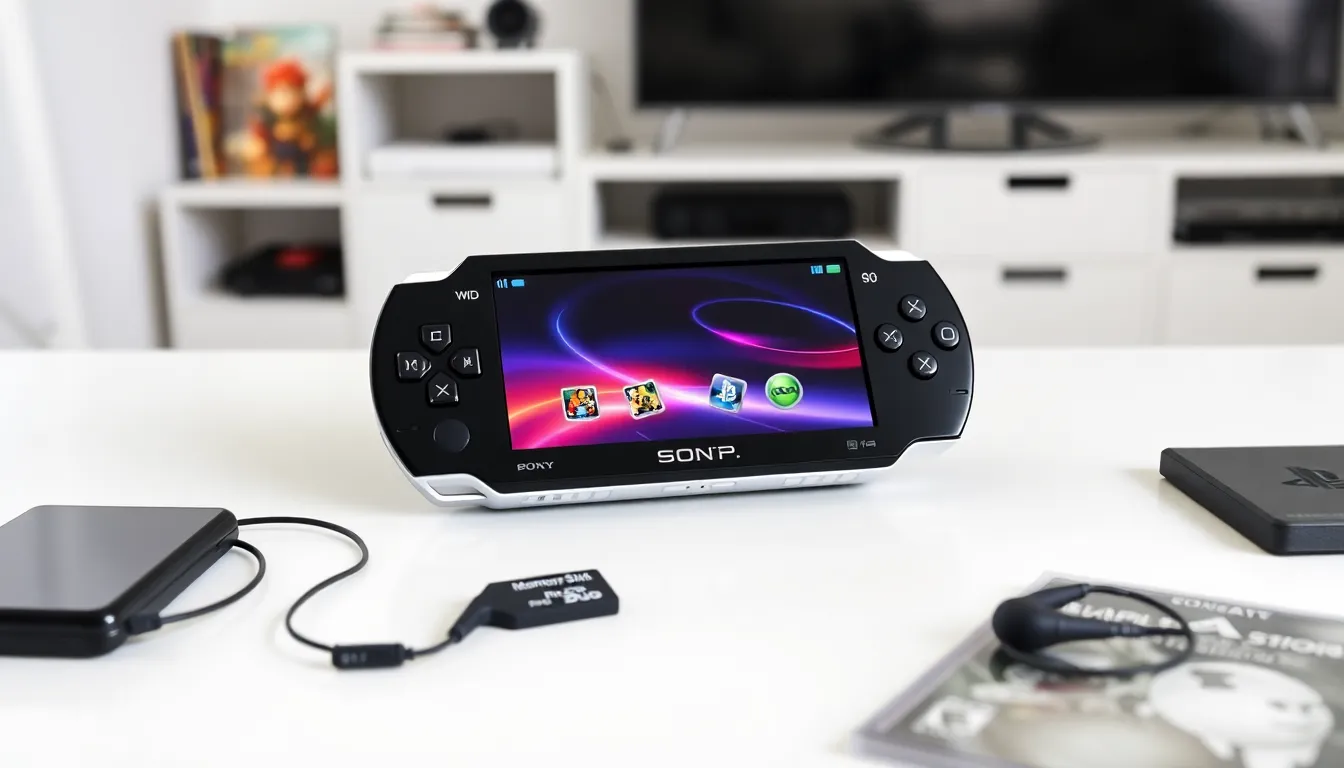
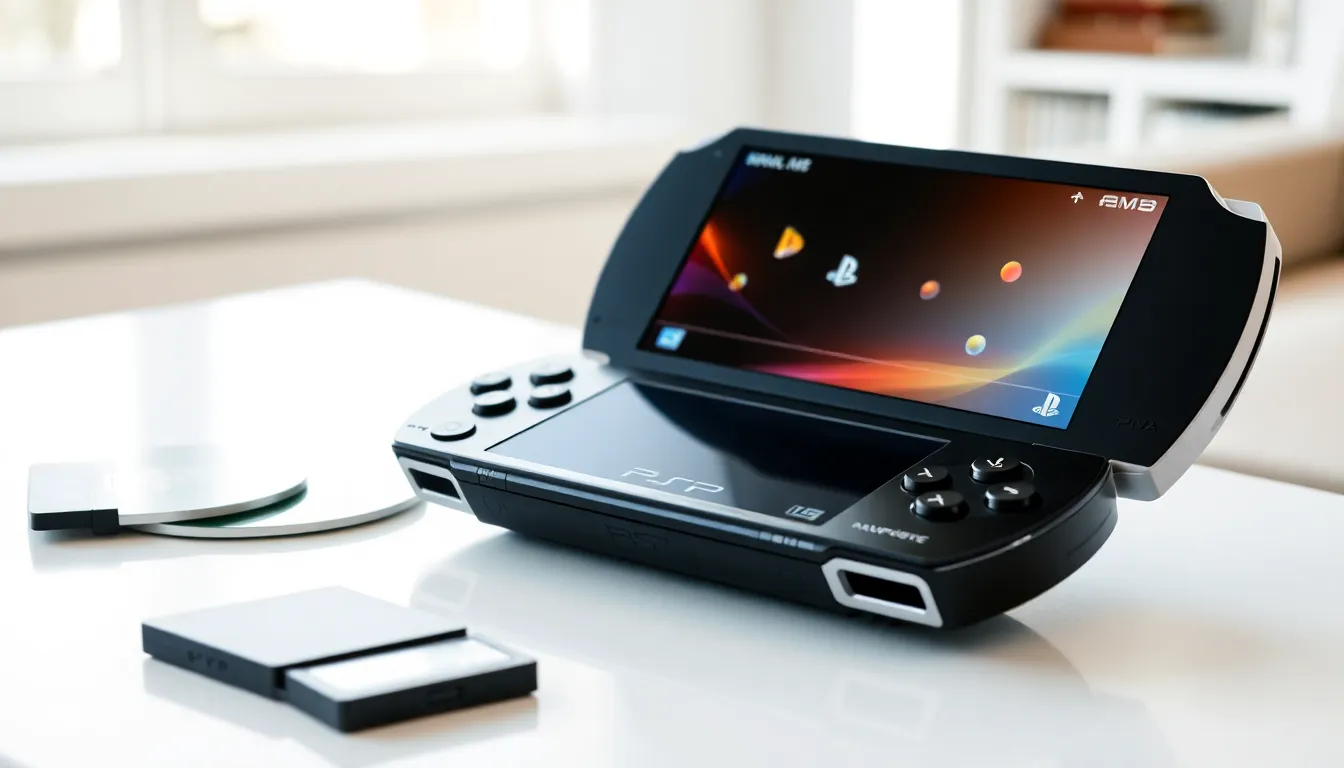
The PlayStation Portable changed handheld gaming when Sony released it in 2004. This pocket-sized console delivered console-quality graphics, multimedia features, and a library of incredible games. For beginners picking up a PSP today, the device remains a fantastic entry point into portable gaming. Whether someone found one at a garage sale or received it as a gift, this guide covers everything needed to start playing. From initial setup to game recommendations, new PSP owners will find all the basics here.
Table of Contents
ToggleKey Takeaways
- The PlayStation Portable (PSP) remains a fantastic entry point for beginners interested in handheld gaming, offering console-quality graphics and a rich game library.
- The PSP-3000 model offers the best balance of screen quality and UMD compatibility for new users.
- Setting up a PlayStation Portable for beginners takes just minutes—charge the battery, configure settings, insert a Memory Stick, and connect to Wi-Fi.
- Top beginner-friendly games include God of War: Chains of Olympus, Lumines, Crisis Core: Final Fantasy VII, and Patapon.
- Protect your investment with a screen protector and carrying case, as the PSP’s screen scratches easily.
- Find affordable UMD games at thrift stores, pawn shops, and online marketplaces to build your collection without overspending.
What Is the PlayStation Portable?
The PlayStation Portable (PSP) is Sony’s first handheld gaming console. It launched in Japan in December 2004 and reached North America by March 2005. The device features a large 4.3-inch widescreen LCD display, which was impressive for its time.
Sony released several PSP models over the years:
- PSP-1000: The original “fat” model with solid build quality
- PSP-2000: Slimmer design with video output capability
- PSP-3000: Improved screen with better color and contrast
- PSP Go: Slide-up design with no UMD drive (digital-only games)
The PlayStation Portable uses proprietary UMD discs for games and movies. It also supports Memory Stick Duo cards for saving games and storing media files. Beyond gaming, the PSP plays music, videos, and displays photos. It even includes a web browser for basic internet access.
For beginners, the PSP-3000 offers the best balance of features and availability. Its screen improvements make games look sharper, and UMD compatibility means access to physical game copies.
How to Set Up Your PSP
Setting up a PlayStation Portable takes just a few minutes. Here’s what beginners need to do:
Charging the Battery
First, connect the AC adapter to the PSP and plug it into a wall outlet. The orange charging light indicates the battery is charging. A full charge takes about two hours. The light turns off when charging completes.
Initial Configuration
Power on the PSP by sliding the power switch up. The system will prompt users to set the date, time, and language. Use the directional pad to select options and press the X button to confirm.
Inserting a Memory Stick
The Memory Stick slot sits on the left side of the PSP. Push the card in until it clicks. This storage is essential for game saves, downloads, and media files. A 4GB or larger card works well for most beginners.
Connecting to Wi-Fi
The PSP supports wireless internet connections. Go to Settings > Network Settings > Infrastructure Mode. Select “New Connection” and follow the prompts. Enter the network name and password when asked. This enables game downloads from the PlayStation Store (while it remains available) and online multiplayer.
Once setup finishes, the PlayStation Portable is ready for action.
Essential Features and Controls
Understanding the PSP’s controls and features helps beginners get comfortable quickly.
Button Layout
The PlayStation Portable uses familiar PlayStation controls:
- D-Pad: Located on the left for directional input
- Analog Nub: Small thumbstick below the D-Pad for precise movement
- Face Buttons: Triangle, Circle, X, and Square on the right
- Shoulder Buttons: L and R triggers on top edges
- Start/Select: Small buttons below the screen
- Home Button: Opens the XMB menu during gameplay
The XrossMediaBar (XMB)
The PSP’s main interface is the XMB, a horizontal menu system. Categories include Settings, Photo, Music, Video, Game, and Network. Users scroll left or right between categories, then up or down through items within each category.
Power Saving Features
Battery life matters on portable devices. The PlayStation Portable offers several power-saving options:
- Lower screen brightness in Settings > Display Settings
- Disable Wi-Fi when not needed using the wireless switch
- Use Sleep Mode instead of powering off completely
These settings extend play sessions significantly. Most PSP models deliver 4-6 hours of gameplay on a full charge.
Best Games to Start With
The PlayStation Portable library includes hundreds of quality titles. These recommendations give beginners a great starting point:
God of War: Chains of Olympus – This action game delivers the full God of War experience in portable form. Combat feels satisfying, and the graphics push the PSP’s capabilities.
Lumines – A puzzle game that combines block-matching with electronic music. It’s easy to learn but hard to master. Perfect for quick play sessions.
Crisis Core: Final Fantasy VII – An action RPG set before the events of Final Fantasy VII. The story captivates fans, and the combat system keeps things engaging.
Daxter – A platformer starring Jak’s sidekick. It offers fun gameplay, humor, and impressive visuals for the PlayStation Portable.
Patapon – A unique rhythm-strategy game where players drum commands to lead an army. Its distinctive art style and addictive gameplay make it memorable.
Monster Hunter Freedom Unite – For those wanting depth, this game offers hundreds of hours of hunting, crafting, and progression.
Beginners should pick genres they enjoy. The PSP excels at action games, RPGs, racing titles, and puzzle games.
Tips for Getting the Most Out of Your PSP
A few practical tips help new PlayStation Portable owners enjoy their device longer.
Protect Your Investment
The PSP’s screen scratches easily. A screen protector prevents damage during regular use. A carrying case shields the entire unit during transport. These accessories cost little but save frustration.
Manage Storage Wisely
Game saves vary in size. Some RPGs create large save files. Check storage space regularly under Settings > System Settings > System Information. Delete old saves or transfer them to a computer when space runs low.
Explore Multimedia Features
The PlayStation Portable handles more than games. Convert videos to MP4 format and load them onto the Memory Stick. Add MP3 files for music playback. The device makes a capable media player for travel.
Find Games Affordably
UMD games appear at thrift stores, pawn shops, and online marketplaces. Physical copies often cost less than digital versions. Check disc condition before buying, scratched UMDs may not read properly.
Keep Firmware Updated
Sony released firmware updates that added features and fixed bugs. Go to Settings > System Update to check the current version. Updates require a Wi-Fi connection or can be installed via Memory Stick.
With proper care, a PlayStation Portable provides years of portable entertainment.