
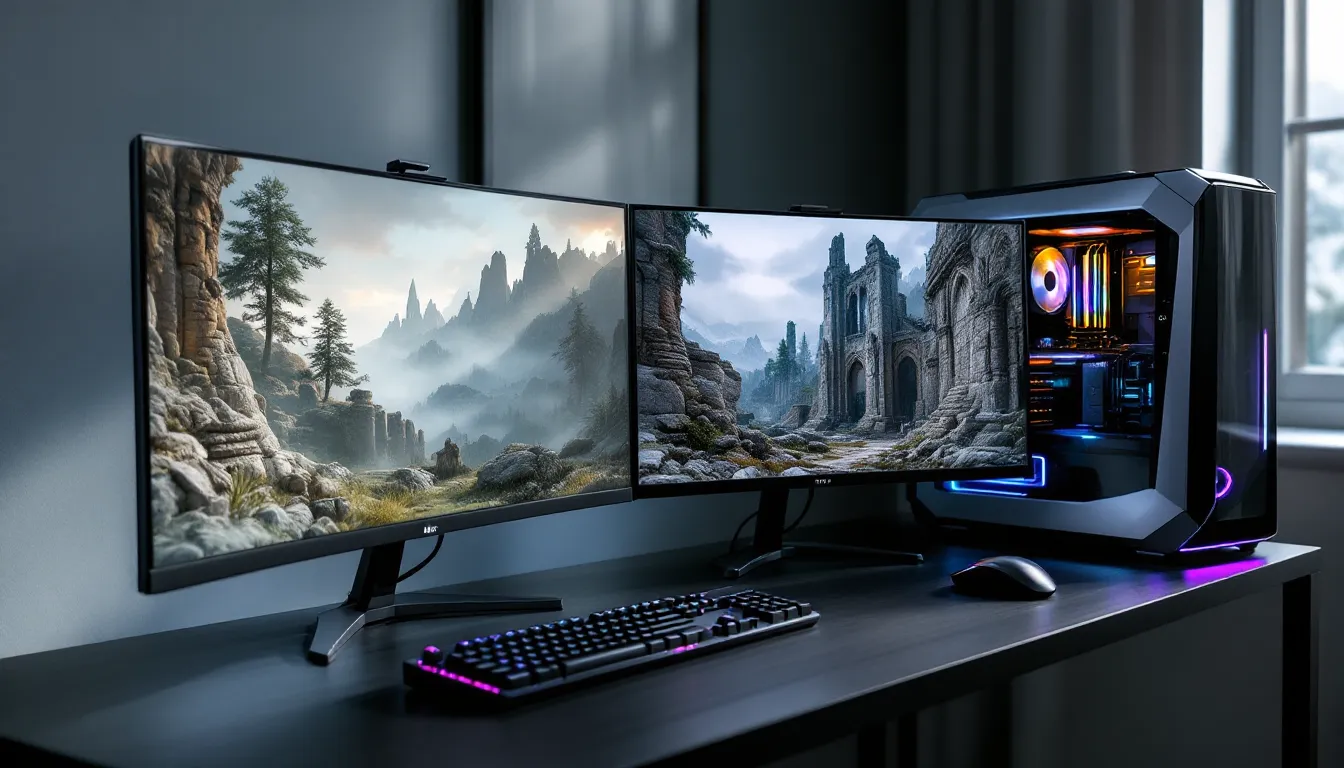
Skyrim’s visual fidelity has aged like a fine cheese left in the sun. While the core gameplay remains legendary, those muddy textures and blurry landscapes can break immersion faster than a misplaced bucket theft. Enter Noble Skyrim, one of the longest-running and most respected texture overhauls in the modding scene. For over a decade, this mod family has been the go-to solution for players who want their Nord homeland to look sharp without melting their GPU in the process.
Unlike some newer texture packs that chase photorealism at the cost of performance, Noble Skyrim strikes a balance between visual improvement and playability. It replaces thousands of vanilla textures, architecture, landscapes, dungeons, clutter, with hand-optimized HD alternatives that maintain Skyrim’s art direction while adding the detail Bethesda’s 2011 engine couldn’t deliver. Whether someone’s running a mid-tier rig or a beast of a PC, there’s a Noble Skyrim version that’ll fit their setup.
This guide breaks down everything players need to know: which version to download, how to install it properly, what mods pair well with it, and how to troubleshoot the inevitable hiccups. By the end, anyone should be able to transform their Skyrim into a visual showcase that still runs smoothly enough for a 200-hour playthrough.
Table of Contents
ToggleKey Takeaways
- Noble Skyrim is a modular texture overhaul that replaces thousands of vanilla textures with hand-optimized 2K alternatives, balancing visual improvement with GPU performance across all system types.
- The mod family offers two main versions: HD-2K for systems with 4GB+ VRAM and Performance Edition for mid-range hardware, both delivering noticeable visual improvements without requiring expensive system upgrades.
- Installing Noble Skyrim through mod managers like MO2 or Vortex is essential for managing load order, conflict resolution, and clean uninstalls compared to manual installation.
- Noble Skyrim pairs seamlessly with complementary mods like SMIM, aMidianBorn, and Majestic Mountains but should not be stacked with competing total overhaul packs like Skyrim 2020 Parallax or Skyland AIO.
- Real-time VRAM monitoring and selective module installation enable players to fine-tune performance without sacrificing visual quality, making Noble Skyrim accessible even on budget systems.
- After thirteen years of continuous updates, Noble Skyrim remains the most reliable and balanced texture overhaul, enhancing vanilla aesthetics without jarring visual disconnects or system compatibility issues.
What Is Noble Skyrim and Why It Matters
Understanding the Noble Skyrim Mod Family
Noble Skyrim isn’t a single mod, it’s a collection of texture packs covering different aspects of the game. The core modules include Noble Skyrim Mod HD-2K (the flagship release), Performance Edition (optimized for lower-end systems), and specialized packs for specific areas like dungeons, landscapes, and cities. Created by modder Shutt3r (also known as Nebula), the project launched in 2012 and has been continuously updated to support Special Edition and Anniversary Edition.
The mod family focuses on architecture and environmental textures rather than character models or weapons. That means stone walls, wooden beams, mountains, roads, snow, and dungeon tiles all get the HD treatment. This approach makes Noble Skyrim an excellent foundation layer, it handles the stuff players see 90% of the time, letting them add specialized mods for NPCs, armor, or flora on top.
What sets Noble Skyrim apart from competitors is its philosophy of enhancement over replacement. Shutt3r didn’t try to reimagine Skyrim’s aesthetic: they refined it. The mod respects vanilla color palettes and material properties, so a modded game still feels like Skyrim, just crisper. For players who want modern fidelity without the jarring disconnect some retexture packs create, this approach hits the sweet spot.
How Noble Skyrim Transforms Your Game
The difference is immediately visible the moment players step out of Helgen’s cave. Vanilla Skyrim’s rock faces look like smeared clay from 10 feet away. With Noble Skyrim installed, those same surfaces gain visible depth, individual stones, and realistic weathering. The transformation becomes even more apparent in dungeons, where the repetitive Nordic ruin tiles that define half the game’s interiors suddenly have readable detail and texture variation.
Performance impact remains reasonable because Noble Skyrim uses 2K resolution textures (2048×2048 pixels) as its standard, not the 4K behemoths that some newer packs favor. VRAM usage typically increases by 1.5–2GB compared to vanilla, which is manageable for most modern GPUs with 4GB+ VRAM. The Performance Edition drops to 1K textures in select areas, making it viable even for integrated graphics or older cards.
The cumulative effect of thousands of improved textures creates a sense of solidity and place that vanilla Skyrim lacks. Cities feel more lived-in, wilderness areas gain depth, and those endless draugr crypts become atmospheric instead of monotonous. It’s not a flashy overhaul that’ll dominate screenshot galleries, but it’s the kind of improvement that makes hour 300 of a playthrough still look fresh.
Noble Skyrim Versions: Choosing the Right One for Your Setup
Noble Skyrim HD-2K vs. Performance Edition
The standard Noble Skyrim HD-2K is the version most players should start with. It targets systems with 4GB+ VRAM and delivers full-resolution 2K textures across the board. File size sits around 2.5GB compressed, which is hefty but not outrageous by 2026 modding standards. This version doesn’t compromise, every texture gets the full treatment, from major architectural elements down to individual clutter objects.
Performance Edition cuts texture resolution selectively to reduce VRAM overhead and loading times. Major surfaces like walls and floors stay at 2K, while smaller objects and distant elements drop to 1K or even 512px where the difference isn’t noticeable during gameplay. Total file size drops to roughly 1.2GB, and VRAM usage typically stays under 1GB above vanilla. This version is ideal for:
- Systems with 2–4GB VRAM
- Players targeting 60+ FPS at 1080p on mid-range hardware
- Modlists already heavy with script-intensive or performance-demanding mods
- Anyone playing on a laptop or older desktop
The visual difference between the two is subtle in motion. Side-by-side screenshots reveal sharper detail in HD-2K, but during actual gameplay, especially at 1080p, Performance Edition holds up surprisingly well. Players shouldn’t feel like they’re settling for a compromised experience: Shutt3r optimized smartly, cutting resolution where the eye doesn’t linger.
Special Edition vs. Anniversary Edition Compatibility
Both versions of Noble Skyrim work seamlessly with Skyrim Special Edition (SE) and Anniversary Edition (AE). Since texture mods don’t rely on the game’s executable or SKSE, the November 2021 AE update didn’t break compatibility. Players on either version can download the same files from Nexus Mods without worrying about version-specific patches.
That said, AE’s addition of Creation Club content introduces some texture overlap. The mod doesn’t cover CC-added armor sets, weapons, or player homes, so those items retain their vanilla CC textures. Players who want full visual consistency should look for supplementary texture packs that specifically target Creation Club content, Noble Skyrim focuses on base-game assets only.
One consideration for AE users: the expanded content means more textures loaded into memory at once, especially in areas like the Ghosts of the Tribunal questline or Saints & Seducers locations. Players with exactly 4GB VRAM might want to opt for Performance Edition if they’re running AE with multiple graphical mods stacked. SE users have slightly more headroom since the base game’s memory footprint is smaller.
Installation Guide: Step-by-Step Setup
Manual Installation Process
Manual installation is straightforward but tedious. Download the desired version (HD-2K or Performance) from the Noble Skyrim page on the modding community platform. Extract the archive using 7-Zip or WinRAR. Inside, there’ll be a folder structure that mirrors Skyrim’s Data directory: typically textures/ folders organized by category (architecture, landscape, dungeons).
Copy those folders directly into Skyrim’s Data directory:
- Steam default:
C:Program Files (x86)SteamsteamappscommonSkyrim Special EditionData - GOG:
C:GOG GamesSkyrim Special EditionData
When prompted about overwriting files, select “Yes to All.” Noble Skyrim’s textures will replace the vanilla equivalents. The game automatically loads loose files from the Data folder, so no additional activation is needed.
Manual installation has drawbacks: it’s harder to uninstall cleanly (requires manually deleting each file), offers no conflict visualization, and makes load order management a nightmare once you’ve got 50+ mods. Most experienced modders skip this method entirely.
Installing Through Mod Managers
Mod Organizer 2 (MO2) and Vortex are the standard tools for 2026 Skyrim modding. Both handle Noble Skyrim flawlessly and make managing conflicts trivial.
Mod Organizer 2 (recommended):
- Open MO2 and click the download button (or manually add the archive via the folder icon).
- Double-click the mod in the left pane to open its information panel.
- Activate the mod by checking the box next to its name.
- Drag the mod above any texture mods you want it to overwrite, but below any mods that should take priority.
MO2’s virtual file system means textures never touch the actual Data folder, everything stays isolated in MO2’s mod directory. This makes testing, swapping, and removing mods completely safe.
Vortex:
- Download through Vortex’s built-in browser or drag the archive into the Mods tab.
- Enable the mod from the list.
- Vortex will auto-sort based on LOOT rules and file conflicts, placing Noble Skyrim appropriately in most cases.
- If conflicts arise, Vortex shows a notification: click “Manage Rules” to set which mod wins.
For players new to modding, Vortex’s automated approach is friendlier. Veterans prefer MO2’s manual control and better debugging tools. Either way, using a mod manager is non-negotiable once you’re past a handful of mods.
Load Order and Conflict Management
Texture mods don’t have traditional “load order” in the ESP sense, they’re loose files, not plugins. What matters is install order or priority. Whichever mod installs last (or has higher priority in MO2’s left pane) overwrites conflicting textures from earlier mods.
Common conflict scenarios:
- Noble Skyrim + SMIM (Static Mesh Improvement Mod): SMIM improves 3D meshes, not textures, so they complement each other. Install Noble Skyrim after SMIM so its textures apply to SMIM’s improved meshes.
- Noble Skyrim + landscape mods: If running something like Majestic Mountains or Blended Roads, install those after Noble Skyrim so the specialized landscape textures overwrite Noble’s more general ones.
- Noble Skyrim + city overhauls: Mods like JK’s Skyrim or Dawn of Skyrim often include custom textures. Let them overwrite Noble’s city textures to maintain visual consistency with their added clutter and architecture.
MO2 users can check the Conflicts tab in a mod’s information panel to see exactly which files are being overwritten or are overwriting others. If a particular texture looks wrong in-game, this tab is the first place to investigate. For a deeper jump into managing these priorities effectively, checking out advanced modding techniques can save hours of troubleshooting.
Performance Impact and System Requirements
Minimum and Recommended Specs
Minimum specs for Performance Edition:
- GPU: GTX 960 / RX 560 (2GB VRAM)
- RAM: 8GB system memory
- Storage: 2GB free space
- Target: 1080p, 30+ FPS with mixed settings
Recommended specs for HD-2K:
- GPU: GTX 1060 6GB / RX 580 8GB or better
- RAM: 16GB system memory
- Storage: 3GB free space (5GB+ if using additional texture mods)
- Target: 1080p/1440p, 60 FPS on High/Ultra settings
Enthusiast setups (HD-2K + other visual mods):
- GPU: RTX 3060 / RX 6700 XT or higher (8GB+ VRAM)
- RAM: 16GB+ system memory
- Storage: SSD strongly recommended for loading times
- Target: 1440p/4K, 60+ FPS with ENB and additional graphical mods
VRAM is the critical bottleneck. Noble Skyrim by itself is reasonable, but most players stack it with lighting overhauls, weather mods, flora improvements, and ENB presets. That cumulative load can push VRAM usage to 6–8GB at 1440p. Anyone on a 4GB card should stick with Performance Edition and be selective about additional texture mods.
RAM matters less for textures specifically but becomes crucial when running script-heavy mods alongside Noble Skyrim. A modlist with 150+ plugins and multiple texture packs benefits significantly from 16GB or more system memory, reducing stuttering during cell transitions.
Optimizing Performance Without Sacrificing Quality
Players can fine-tune Noble Skyrim’s impact through several strategies:
Selective installation: Noble Skyrim’s modular structure lets users install only specific components. Someone primarily exploring dungeons might skip landscape textures entirely, saving 600–800MB VRAM. Conversely, someone who hates dungeons can skip those textures. MO2 makes this easy, just hide unwanted folders within the mod’s file tree.
INI tweaks for texture resolution: Skyrim’s configuration files control maximum texture resolution loaded. Editing SkyrimPrefs.ini:
[Display]

iTexMipMapSkip=0
Setting iTexMipMapSkip=1 forces the game to load one mipmap level lower (effectively halving resolution), which can reclaim significant VRAM with minimal visual loss at 1080p. Setting it to 2 is aggressive but viable for 2GB VRAM systems.
BethINI optimization tool: This free utility auto-adjusts dozens of INI settings for optimal performance/quality balance. Running it after installing Noble Skyrim ensures the game’s configuration matches the new texture load. Choosing the “Performance” preset with texture mods installed often yields better results than vanilla’s “High” preset.
Pair with performance-friendly lighting: ENB presets are gorgeous but murder framerate. Lighting improvements that use vanilla lighting systems, like Relighting Skyrim or Luminosity, complement Noble Skyrim’s textures without the 20–30 FPS hit of a full ENB setup.
Monitor with tools: SSE Display Tweaks and other performance overlays show real-time VRAM usage and frametime graphs. If VRAM maxes out, the game will stutter as it swaps textures to system RAM. Catching this early lets players dial back before it becomes unplayable.
Combining Noble Skyrim With Other Popular Mods
Compatible Texture and Lighting Mods
Noble Skyrim plays well with most texture packs because of its targeted scope. It focuses on architecture and landscapes, leaving plenty of room for specialized mods:
Static Mesh Improvement Mod (SMIM): The most essential companion. SMIM improves 3D geometry (higher-poly models for ropes, chains, furniture, etc.), while Noble Skyrim provides the textures for those models. Install SMIM first, then Noble Skyrim to ensure the new meshes get the HD textures. This combo is standard in virtually every modlist.
aMidianBorn Book of Silence: Covers armor, weapons, creatures, and unique items, areas Noble Skyrim doesn’t touch. Zero conflicts, full compatibility. Together, they handle 80% of the game’s visual assets.
Realistic Water Two: Overhauls water textures and behavior. Noble Skyrim doesn’t modify water, so RW2 integrates seamlessly. Same goes for Pure Waters or any other water mod.
Enhanced Lights and FX (ELFX): Revamps interior lighting without touching textures. Noble Skyrim’s dungeon and interior textures respond beautifully to ELFX’s more dramatic shadows and light sources, creating atmospheric depth vanilla can’t match.
Majestic Mountains & Blended Roads: These specialized landscape mods should install after Noble Skyrim, overwriting its mountain and road textures with even higher-detail alternatives. The rest of Noble’s landscape work (grass, dirt, rocks) remains untouched.
Flora mods (Cathedral Plants, Skyrim Flora Overhaul): Noble Skyrim includes some plant textures, but dedicated flora mods offer superior results. Let them overwrite Noble’s plants while keeping its architecture and landscape work.
For lighting specifically, Noble Skyrim is lighting-agnostic. Whether someone’s running vanilla lighting, ELFX, Lux, or a full ENB preset, the textures adapt. That said, Noble’s realistic material properties shine brightest with PBR-aware lighting systems or ENB’s advanced material parameters.
Mods to Avoid: Preventing Conflicts
Certain mod types cause problems when stacked with Noble Skyrim:
Skyrim 2020 Parallax by Pfuscher: Covers much of the same ground as Noble Skyrim but uses a completely different approach (parallax occlusion mapping for fake 3D depth). Installing both creates a patchwork where some surfaces have parallax and others don’t, which looks inconsistent. Pick one or the other, don’t mix them.
Total overhaul packs (Skyland AIO, Tamriel Reloaded): These all-in-one texture packs replace everything, including what Noble Skyrim covers. Running them together means one completely overwrites the other based on install order, wasting space and potentially causing visual mismatches. Choose a single base texture pack, then add specialized mods on top.
Old/abandoned architecture mods: Mods like “Skyrim HD – 2K Textures” (by NebuLa, confusingly, a different person than Shutt3r/Nebula) haven’t been updated since 2013. Their textures often clash with Noble Skyrim’s color grading and can introduce bugs on Special Edition. Stick with actively maintained mods.
4K texture packs on <6GB VRAM systems: Technically compatible, but stacking Noble Skyrim with multiple 4K packs (Vivid Landscapes 4K, Skyland 4K, etc.) will max out VRAM and cause crashes or texture corruption. If VRAM is limited, stick with 2K or lower across the board.
Script-heavy overhauls unrelated to textures: Mods like Requiem, Wildcat, or Ordinator won’t conflict with Noble Skyrim directly, but their script load combined with high-res textures can strain weaker systems. Monitor performance carefully when combining gameplay overhauls with visual mods.
Troubleshooting Common Issues
Fixing Texture Flickering and Missing Meshes
Texture flickering (z-fighting): When two textures occupy the same 3D space, they “fight” for display priority, creating a shimmering effect. Noble Skyrim itself rarely causes this, but conflicts with landscape mods or incorrectly installed parallax patches can trigger it. Solutions:
- Verify that SMIM installed correctly before Noble Skyrim. Missing meshes from SMIM can cause flickering when Noble’s textures have no proper geometry to attach to.
- Check for duplicate landscape texture mods fighting for priority. Use MO2’s Conflicts tab to identify which mod is winning per texture, then disable one.
- If flickering occurs on roads, ensure road texture mods (Blended Roads, Majestic Mountains’ road addon) installed after Noble Skyrim in priority order.
Purple/missing textures: The infamous purple texture means the game is trying to load a texture that doesn’t exist. This happens when:
- A mod expects a specific texture file that Noble Skyrim doesn’t provide (usually because the mod also requires a mesh replacer).
- File paths are case-sensitive on Linux systems running Skyrim via Proton: double-check folder naming.
- Corruption during download. Re-download the mod and verify archive integrity.
Blurry textures at distance: Skyrim uses mipmaps (lower-resolution versions of textures for distant objects) to save performance. If distant objects look worse than expected:
- Check
iTexMipMapSkipinSkyrimPrefs.ini. If it’s set to 1 or 2, change it to 0 for full resolution. - Install a texture optimization tool like Cathedral Assets Optimizer to ensure Noble Skyrim’s textures have proper mipmaps generated.
- Some ultra-distant objects use pre-rendered LOD (level of detail) meshes, which Noble Skyrim doesn’t cover. Consider adding DynDOLOD and TexGen for distant land improvements.
Resolving CTD and Performance Problems
Crashes on loading screens (CTD): Texture-related CTDs usually stem from VRAM exhaustion. When Skyrim tries to load more textures than available VRAM, it crashes instead of gracefully degrading. Fixes:
- Switch from HD-2K to Performance Edition.
- Use SSE Engine Fixes (essential mod for stability) with its VRAM limiter feature enabled.
- Reduce texture resolution via
iTexMipMapSkip=1in the INI files. - Disable other texture mods temporarily to isolate whether Noble Skyrim is the culprit or if cumulative VRAM usage is the issue.
Infinite loading screens: Usually a load order problem with plugins, not textures. But, if it started immediately after installing Noble Skyrim:
- Verify all files installed correctly: corrupted archives can cause this.
- Check that no critical meshes from SMIM or other mesh mods are missing. Noble Skyrim textures need proper meshes to attach to.
- If using an ENB, ensure the ENB version matches the Skyrim SE version. ENB binary mismatches can cause infinite loads that seem texture-related.
Framerate drops in specific areas: Cities and dense forests hit hardest. If FPS tanks in Riften or Falkreath:
- Noble Skyrim’s clutter textures are likely fine: the issue is usually high-poly meshes from other mods or script load from NPC overhauls.
- Use BethINI to reduce shadow resolution and grass density, these impact performance far more than texture resolution.
- Consider JK’s Skyrim Lite or The Great City alternatives that add fewer objects.
- Disable tree/grass mods temporarily to isolate the cause. If FPS improves dramatically, textures weren’t the problem.
VRAM usage monitoring: Install GPU-Z or MSI Afterburner to watch real-time VRAM usage. If it hovers near maximum capacity, the next texture load could trigger a crash. Aim to keep VRAM usage at 80% or below during normal gameplay for stability headroom.
Noble Skyrim vs. Competitors: How It Stacks Up
Comparing Noble Skyrim to Skyrim 2020 Parallax
Skyrim 2020 Parallax by Pfuscher is the most ambitious texture overhaul available in 2026, using parallax occlusion mapping to create fake 3D geometry in textures. Bricks appear to jut out from walls, cobblestones have visible depth, and surfaces react dynamically to lighting. It’s visually stunning, and performance-intensive.
Key differences:
- Performance: Skyrim 2020 requires significantly more GPU horsepower. Even the RTX 3070-tier cards see 15–20 FPS drops compared to Noble Skyrim. Systems with <6GB VRAM struggle.
- Aesthetic: Skyrim 2020 goes for enhanced realism with deeper material detail, while Noble Skyrim stays closer to vanilla’s stylized look. Skyrim 2020 can feel too detailed in some areas, breaking the art direction.
- Compatibility: Skyrim 2020’s parallax requires specific lighting setups to shine (ENB with parallax support). Noble Skyrim works with any lighting, including vanilla.
- Coverage: Skyrim 2020 is less comprehensive. It focuses on architecture and landscapes but misses some clutter and dungeon details that Noble covers.
Recommendation: Choose Skyrim 2020 for high-end PCs where performance isn’t a concern and visual wow-factor matters most. Choose Noble Skyrim for balanced performance, broader compatibility, and a look that doesn’t overshadow gameplay. Players can find more about optimizing visual setups through comprehensive modding resources.
Noble Skyrim vs. Skyland and Other Alternatives
Skyland is Noble Skyrim’s closest competitor in the “performance-friendly HD overhaul” category. Created by Skyking42, Skyland also targets 2K resolution and maintains vanilla aesthetics.
Comparison:
- File size: Skyland AIO is around 3.5GB vs. Noble’s 2.5GB. The extra size comes from Skyland covering more asset types (signs, furniture, some creatures).
- Art direction: Skyland tends toward slightly more saturated, “cleaner” textures, while Noble keeps the grittier, more weathered vanilla look. Preference is subjective.
- Performance: Nearly identical. Both use 2K textures efficiently: VRAM usage differs by <200MB in most cases.
- Modularity: Skyland offers more granular modules (Skyland Architecture, Skyland Landscapes, Skyland Farmhouses), making selective installation easier. Noble’s structure is simpler but less flexible.
Other alternatives:
- Tamriel Reloaded: Older, less consistent quality. Some textures look great: others feel dated. Noble Skyrim is more polished overall.
- Osmodius Texture Pack: Ultra-lightweight, good for very old hardware, but low detail compared to Noble’s Performance Edition.
- Pfuscher’s mods (various): High-quality specialized packs (Embers HD, Majestic Mountains). Best used alongside Noble Skyrim to supplement specific areas rather than as full replacements.
Recommendation: Noble Skyrim for its proven track record, broad coverage, and philosophy of refinement over reinvention. Skyland for slightly more saturated visuals and greater modularity. Both are excellent: choosing between them comes down to personal aesthetic preference. Don’t sleep on mixing them selectively, for example, Noble’s dungeons with Skyland’s architecture.
Anyone building their first modlist should explore essential Skyrim strategies to understand how visual mods fit into the bigger picture of improving the overall experience.
Conclusion
Noble Skyrim remains one of the most reliable texture overhauls thirteen years after Skyrim’s release because it solves the right problem: making the game look modern without breaking it. For players who want to breathe new life into their hundredth playthrough or newcomers experiencing Tamriel for the first time, Noble Skyrim delivers immediate, noticeable improvement without the hassle of incompatible patches or system-melting performance hits.
The modular approach means it scales from budget laptops to enthusiast rigs. Pair it with SMIM and a few targeted mods, better water, improved lighting, maybe enhanced flora, and Skyrim transforms from a dated 2011 game into something that holds up visually in 2026. It won’t win screenshot contests against full parallax setups, but it’ll look great while maintaining smooth gameplay.
Most importantly, Noble Skyrim gets out of the way. It’s not flashy or distracting: it just makes everything better. The stone walls feel like stone, the wood grain has texture, and the world feels solid and lived-in. For a game where players spend hundreds of hours exploring every cave and ruin, that consistency matters more than any single jaw-dropping vista.